Progressive Image Loading with BlurImage: From Placeholder to High-Resolution
Building an efficient image component with lazy loading, blur placeholders, and techniques for approximating image dimensions and converting images to base64 on macOS
February 21, 2026
Progressive Image Loading with BlurImage
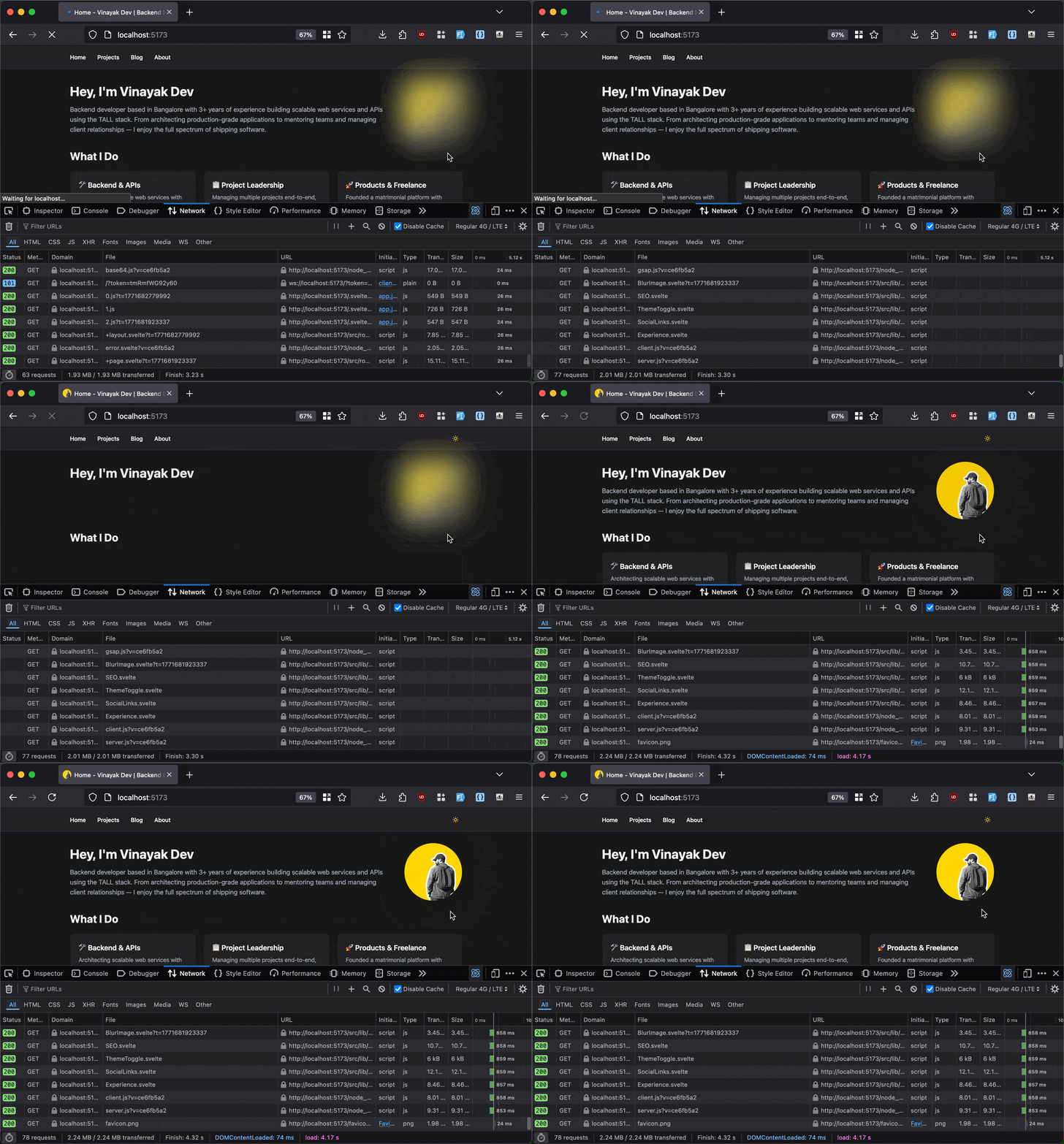
In modern web development, images are often the largest assets on a page. Optimizing how they load can dramatically improve perceived performance and user experience. Today, I’m sharing the approach we use with the BlurImage component—a lightweight Svelte component that implements progressive image loading with a blurred placeholder.
The BlurImage Component
Here’s the complete component that handles everything:
<script>
	let { src, alt, placeholder, class: className = '', ...rest } = $props();
	let loaded = $state(false);
</script>

<div class="relative {className}" {...rest}>
	<img
		src={placeholder}
		{alt}
		aria-hidden="true"
		class="absolute inset-0 w-full h-full blur-2xl transition-opacity duration-500"
		class:opacity-0={loaded}
	/>
	<img
		{src}
		{alt}
		loading="lazy"
		class="absolute inset-0 w-full h-full object-cover transition-opacity duration-500"
		class:opacity-0={!loaded}
		onload={() => (loaded = true)}
	/>
</div>
How It Works
The component uses a two-layer approach:
- Placeholder Layer - A small, blurred version of the image that displays immediately
- High-Resolution Layer - The actual full-quality image that loads lazily
The key properties are:
src- The full-resolution image URLplaceholder- A small, heavily blurred (or low-quality) versionalt- Accessibility textclassName- Optional CSS classes for styling the wrapper
When the high-res image finishes loading, the onload handler sets loaded = true, triggering the fade-out of the placeholder via the transition classes.
Why This Approach?
- Perceived Performance: Users see something immediately instead of a blank space
- Smooth Transition: The blur-to-sharp effect is visually pleasing
- Lazy Loading: The full image only downloads when the browser decides it’s in the viewport
- Minimal JavaScript: No heavy libraries, just native browser APIs
- Low Bandwidth: The placeholder is typically less than 5KB
Approximating Image Dimensions
One challenge with lazy-loaded images is preventing layout shift. If you don’t specify dimensions, the page reflows when the image loads. Here’s how to approximate image dimensions:
Method 1: Container-Based Sizing
Calculate dimensions based on the screen width and common aspect ratios:
function getImageDimensions(screenWidth, aspectRatio = 16/9) {
  const containerWidth = Math.min(screenWidth, 1200); // max-width
  const padding = screenWidth < 768 ? 16 : 32; // mobile vs desktop padding

  const width = containerWidth - (padding * 2);
  const height = width / aspectRatio;

  return { width, height };
}

// Example usage
const { width, height } = getImageDimensions(window.innerWidth, 16/9);
console.log(`Expected: ${width}x${height}`);
Method 2: Using Image Metadata
If you have control over the image storage, calculate and store dimensions when uploading:
// In your upload handler
const img = new Image();
img.onload = () => {
  const { width, height } = img;
  const aspectRatio = width / height;

  // Store or use this data
  console.log(`Original: ${width}x${height}, Aspect: ${aspectRatio.toFixed(2)}`);
};
img.src = url;
Method 3: Inspect Network Response
Use browser DevTools or check the actual image headers:
# Quick check on macOS
sips -g pixelWidth -g pixelHeight /path/to/image.jpg

# Or using ImageMagick (if installed)
identify /path/to/image.jpg
Method 4: CSS Aspect Ratio (Most Reliable)
The easiest modern approach—use CSS aspect-ratio:
.image-container {
  width: 100%;
  max-width: 1200px;
  aspect-ratio: 16 / 9;
  overflow: hidden;
}

.image-container img {
  width: 100%;
  height: 100%;
  object-fit: cover;
}
This prevents layout shift without needing to know exact pixel dimensions!
Creating Base64 Placeholders on macOS
The placeholder image needs to be:
- Very small (typically 20-40px wide)
- Heavily compressed/blurred
- Base64 encoded for embedding in HTML/CSS
Step 1: Prepare Your Image
First, resize and compress the image on macOS:
# Using sips (built-in macOS tool)
sips -Z 32 original-image.jpg -o placeholder-thumb.jpg

# Verify dimensions
sips -g pixelWidth -g pixelHeight placeholder-thumb.jpg
The -Z flag resizes to fit within 32x32 pixels while maintaining aspect ratio.
Step 2: Further Compress
For an even smaller file size, reduce quality:
# If you have ImageMagick installed (install via: brew install imagemagick)
convert placeholder-thumb.jpg -quality 50 placeholder-compressed.jpg

# Check file size
ls -lh placeholder-compressed.jpg
Step 3: Convert to Base64
# Basic conversion
base64 placeholder-compressed.jpg

# Save to a variable or file
base64 -i placeholder-compressed.jpg -o placeholder.b64

# Or directly create a data URI
echo "data:image/jpeg;base64,$(base64 < placeholder-compressed.jpg)"
Step 4: Use in Your Component
<BlurImage
  src="https://example.com/high-res-image.jpg"
  placeholder="data:image/jpeg;base64,/9j/4AAQSkZJRgABA..."
  alt="Beautiful landscape"
/>
Complete Workflow Script
Here’s a handy bash script to automate this:
#!/bin/bash
# convert-to-placeholder.sh

INPUT_FILE=$1
OUTPUT_BASE=${INPUT_FILE%.*}

if [ ! -f "$INPUT_FILE" ]; then
  echo "Error: File not found: $INPUT_FILE"
  exit 1
fi

echo "Converting $INPUT_FILE to base64 placeholder..."

# Resize to 32px width
sips -Z 32 "$INPUT_FILE" -o "$OUTPUT_BASE-thumb.jpg"

# Compress further
convert "$OUTPUT_BASE-thumb.jpg" -quality 50 "$OUTPUT_BASE-placeholder.jpg"

# Create data URI
DATA_URI="data:image/jpeg;base64,$(base64 < "$OUTPUT_BASE-placeholder.jpg")"

echo "$DATA_URI"

# Optionally save to clipboard
echo "$DATA_URI" | pbcopy && echo "✓ Copied to clipboard!"
Usage:
chmod +x convert-to-placeholder.sh
./convert-to-placeholder.sh my-image.jpg
Performance Metrics
With this approach, here’s what we typically see:
| Metric | Value |
|---|---|
| Placeholder size | 0.5 - 2 KB |
| Time to show blur | ~0ms (instant) |
| Time to high-res load | 200-800ms (lazy) |
| Perceived load time | ~0ms (blur shows immediately) |
| Layout shift | 0 (with CSS aspect-ratio) |
Real-World Example
Putting it all together:
<script>
  import BlurImage from '$lib/components/BlurImage.svelte';

  const imageData = {
    src: 'https://images.unsplash.com/photo-example.jpg',
    placeholder: 'data:image/jpeg;base64,/9j/4AAQSkZJRgABA...',
    alt: 'Mountain landscape'
  };
</script>

<div class="w-full max-w-2xl aspect-video">
  <BlurImage
    src={imageData.src}
    placeholder={imageData.placeholder}
    alt={imageData.alt}
    class="rounded-lg shadow-lg"
  />
</div>

<style>
  :global(.blur-container) {
    position: relative;
    overflow: hidden;
  }
</style>
Key Takeaways
- Progressive loading improves perceived performance significantly
- Lazy loading reduces bandwidth and improves page speed
- Aspect ratio CSS prevents layout shift without hardcoding dimensions
- Base64 placeholders are small enough to embed directly in HTML
- macOS tools make placeholder creation quick and easy
The BlurImage component is a simple but effective pattern that provides excellent UX without the overhead of complex image optimization libraries. Perfect for portfolio sites, blogs, and content-rich applications where images are central to the experience.
Happy optimizing! 🚀